
Print, copy and understand copyright

You can use UniPRINT to print, photocopy or scan at Oxford Brookes. This is a service provided by Oxford Brookes IT Services.

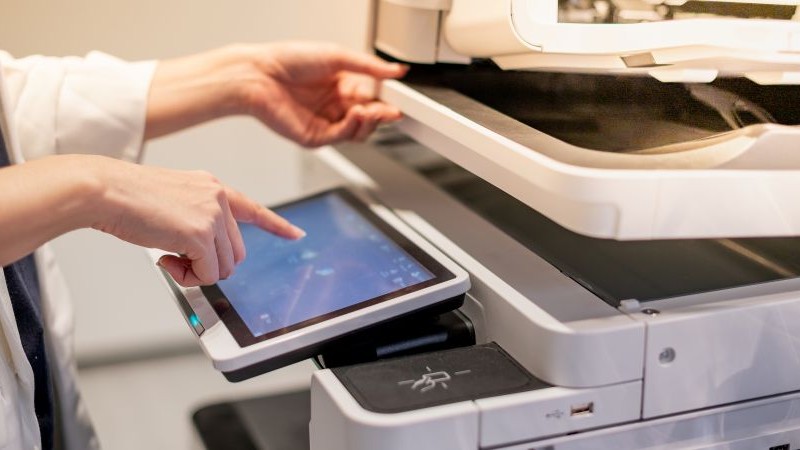
There are Canon Multifunctional devices (MFDs) in our libraries and elsewhere on campus. You can use these to print, photocopy and scan.

The information on this page will help you get set up, and show you how to print, photocopy or scan. IT Services provide more detailed help and information.

NB: The copyright advice on this page does not constitute formal legal advice
On this page

Getting started

Sign in to the UniFLOW dashboard, using your student/staff number and password.

To add credit to your UniPRINT account, choose ‘Extensions’ then ‘Budgets’ and select ‘Add funds’.

The first time you scan your card at an MFD, you’ll need your PIN. You can find that on the right hand side of your UniFLOW dashboard.

How to print

To print, you need to have credit in your UniFLOW budget. Go to Getting started to see how to do this.

If you are printing from a networked computer, select ‘UniPRINT’ from the list of available printers. You may see a pop-up asking you to confirm which campus you’re on.

The simplest way to print a file from your own device is to sign in to the UniFLOW dashboard, using your student/staff number and password. Go to ‘start printing’ then drag and drop your file.

Our step-by-step guide to printing shows some alternative ways to print.

How to scan or copy

To copy, you need to have credit in your UniFLOW budget. It is free of charge to scan.

Log into any MFD on campus using your student or staff card. If you are asked for a PIN, you can find this on your UniFLOW dashboard.

Go to Getting Started for instructions on how to add credit and find your PIN.

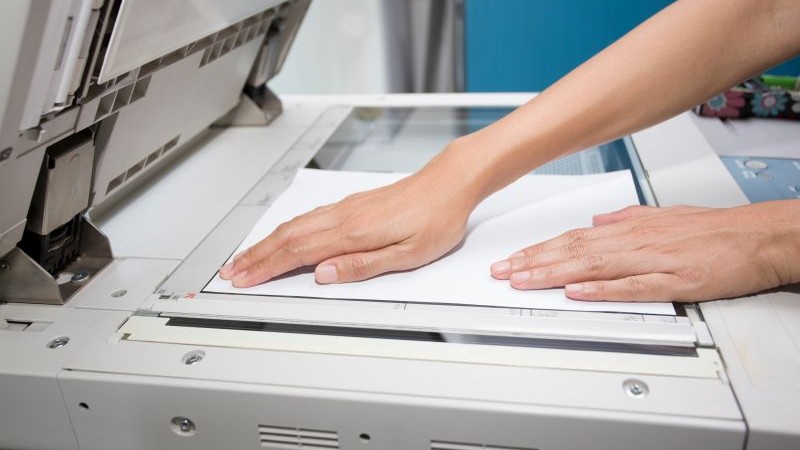
On the MFD screen, select either ‘copy’ or ‘scan’ and choose from the formatting options shown.

Frequently asked questions

Copyright: Scanning or copying for personal use

Copyright: Scanning or copying for wider use

Copyright: Finding and using images